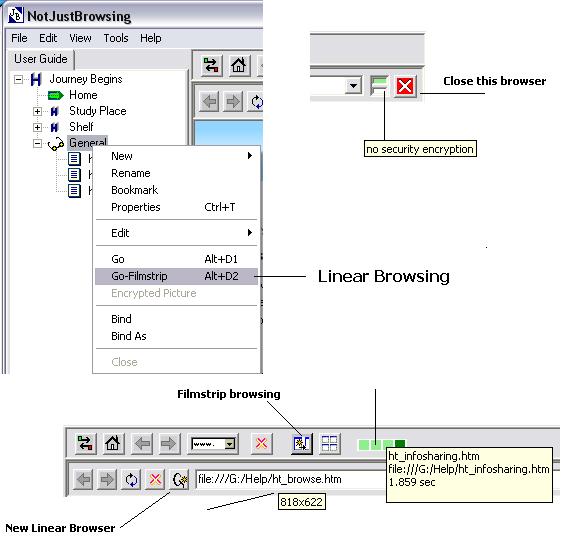
1. By pressing "New Linear Browser" button, a new browser
will be inserted in front of the one whose button was pressed. New browser will
start browsing for the address that was present in the URL box at the time of
pressing the button.
2. An indicator corresponding to every new browser will
be placed at the top displaying the status of the browsing. On successful
loading of document (light green), indicator representing this browser will
display access time, but in the tooltip as shown above. If needed, by clicking
on to this browsing indicator, respective browser will be brought in front.
3. Browsing progress status text will be displayed in the
URL box with a light coloured background.
4. Browsing window size can be found as a tooltip to the
browsing control panel. This size can be used to adjust the size in the layout
settings for multiple browsing purpose.
5. Linear browsing can be activated by using "Go-Filmstrip"
menu item in the Study Place on a selected heading or sub heading.
Using Linear
Browsing Effectively
If popups are blocked then "Open in new window" a context menu item of
browser will be enabled but ineffective and no window will be opened as a
result.
Allowing popups and then using "Open in new window" context menu option to
open a particular link from within a web page in a new window may cause
unintentional consiquences or may be security breaches.
Instead, press "New Linear Browser" button to obtain the same web page
but in a new linear browsing window. Now visit the URL link within this new
browser window. Make sure that popups are blocked.
Example of how linear browsing
can be utilised effectively against security threats.